
Digital Media Services

Digital Media Services
Welcome to Digital Media Services! Our mission is to empower the Loyola community with multimedia resources and services that support individual and academic pursuits in a friendly and welcoming environment. Whether taking advantage of our extensive equipment loan program, printing posters, studying in our computer labs, or for faculty and staff to leverage webinars or media productions, we are dedicated to promoting your success inside and out of the classroom. Consider our services your passport to creativity!

Students · Faculty · Staff
Equipment Loan Program
The Equipment Loan Program offers a large variety of technology and multimedia resources in support of individual, academic projects and pursuits for up to 7-day usage. These resources allow discovery of emerging technology tools, development of creative skills, and delivery of rich multimedia projects, as well as enabling continuity with technology in project and coursework needs.

Students · Faculty · Staff
Printing & Posters
At our Lakeside campuses, we support the printers in all our computer lab and kiosk locations. Our printers use the MobilePrint system allowing quick printing from lab machines as well as ease of sending documents from your Loyola email address on any device to print. We also oversee the large-format poster printing services across all three campuses and continue to expand custom print services like button making and more.

Students · Faculty · Staff
Computer Labs & Software
We support almost all computer labs across our campuses that serve a variety of academic needs. Ranging from open-access spaces for study and group collaboration to in-classroom labs for instruction as well as kiosks in several busy locations. Our computers boast a wide range of software applications for numerous academic uses and several printing options.
Faculty · Staff
Media Production Studios
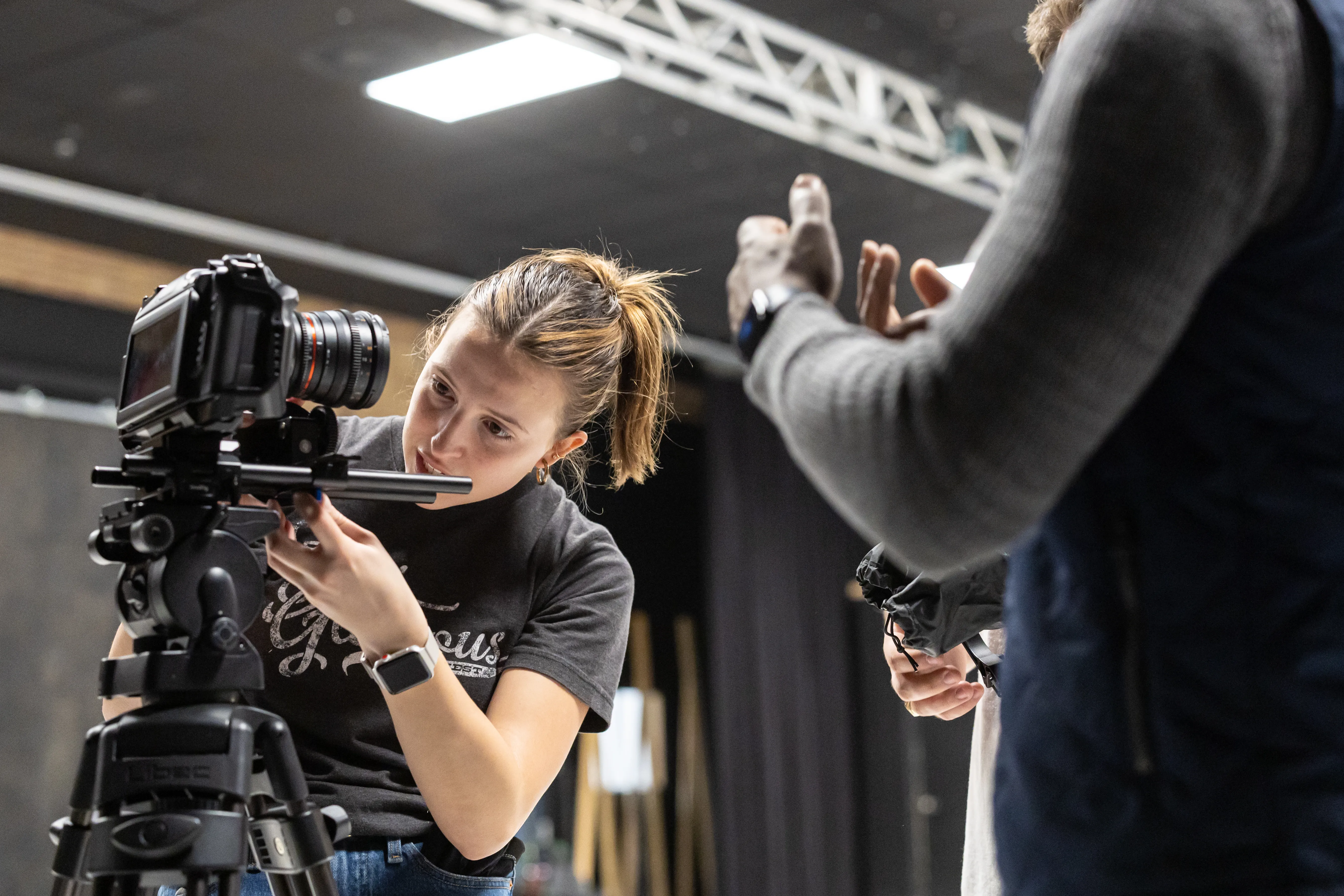
Faculty and staff looking to expand their instruction materials or web resources with multimedia content can take advantage of our service request process for Media Production Studio projects. Available across our three main campuses, our studios are equipped with professional grade equipment and skilled Media Production Specialist staff who are eager to collaborate with you to take instruction possibilities to new levels.
Faculty · Staff
Zoom Webinars
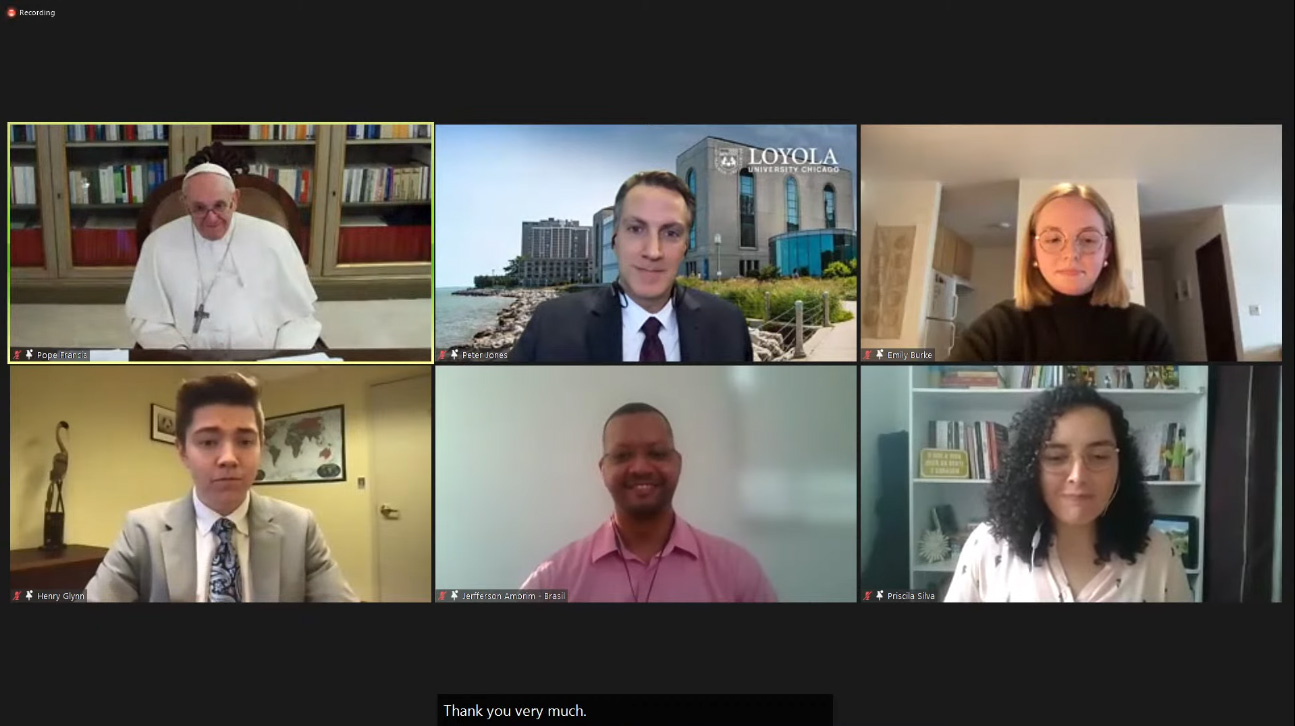
Faculty and staff that wish to host virtual events with more presentation-focus and moderated attendee communications should submit request to schedule Zoom Webinars. This allows you to host and lead your virtual event, leveraging capacity beyond the 300 Zoom Meeting limit, options for registration and reports, and unique features like Q&A that can make your virtual experience stand out.
Frequently Asked Questions
How do I print to on-campus printers?
On-Campus printing is made possible by our MobilePrint system, allowing ease of print outs from our computer lab workstations as well as sending documents from your Loyola email.
There are per page costs for printing which can be paid via your Loyola ID with Uniprint dollars loaded each semester or Rambler Bucks. To review your balance or add funds to your Loyola ID, visit the Campus Card's Online Card Office.
To learn more, visit our Printing & Posters page.
How do I submit a poster for printing?
We oversee the large-format poster printing services in support of individual, academic projects, presentation materials, and limited on-campus signage. All orders are evaluated to ensure optimal scaling and policy considerations and we guarantee a 72-hour (3 day) turnaround time, provided there are no file issues.
Visit our Poster Printing pages to find templates, step-by-step instructions, and service policies.
By popular request, we also offer Poster Design Consultations allowing for more in-depth review and feedback for your poster design before submitting an order.
Visit the Poster Printing Submission Form to start a new poster order.
How do I make a reservation for the Equipment Loan Program?
Our Equipment Loan Program offers a wide array of technologies for up to 7-day usage per loan based on availability. Visit our Browse Equipment pages first to review what we have and offer.
Login to the WebCheckout system to create a self-service reservation for the equipment you need with pickup and return times that work best with your schedule.
For a step-by-step instructions on how to best use and navigate this system, visit our WebCheckout Reservations and WebCheckout Renewals pages.
Are there technology discounts available for Loyola students, faculty, and staff?
Yes! Are you looking to purchase a new personal PC or Mac computer, interested in mobile provider discounts, or otherwise looking for software discounts and recommendations? Are you looking for a curated list of royalty-free multimedia assets and resources for your digital media projects?
Visit TechConnect, our unified location for technology discounts.
Podcasting
WTC Vocal Booth
Our Vocal Booth is a near-soundproof enclosure that can accommodate up to 2 individuals for ease of high-quality audio recordings for podcasting, interviews or narration. This resource is located within our Water Tower Campus Digital Media Lab and available for walk-in use and by reservation.
Custom Printing
Button Making
Are you looking to make your student organization or department stand out at resource fairs and events? How about creative ways to celebrate teams or individuals? We offer printing services for buttons, enabling customized promotional material or mementos as affordable prices and flexible order quantities.
Inventory Management
WebCheckout
Departments with needs for inventory circulation, asset management, or self-service resource or room reservations should look no further than WebCheckout. You can maintain your resources, set specific access and usage policies and leverage robust usage reporting, all with ease.
Technology Discounts
TechConnect
Are you looking to purchase a new personal PC or Mac computer, interested in mobile provider discounts, or otherwise looking for software discounts and recommendations? Visit TechConnect, our unified location for technology discounts.
Our Service Locations & Hours
Lake Shore Campus
Our Service Locations
Labs & Printing Support: Information Commons 2nd Floor Desk
Equipment Loan: Information Commons room 203
Our Summer Intersession 1 Hours:
The hours are effective Sunday, May 3rd through Sunday, May 17th:
Mondays - Fridays: 10am-Noon, 1pm-3pm
Saturday - Sundays: Closed
Our Summer Session Hours:
These hours are effective Monday, May 18th through Saturday, August 22nd:
Mondays - Fridays: 10am - 2pm
Saturdays - Sundays: Closed
For reduced hours or closures, visit our Holiday Break & Reduced Hours page.
Water Tower Campus
Our Service Locations
Labs & Printing Support: Corboy Law Center room 605
Equipment Loan: Corboy Law Center room 608
Our Summer Intersession 1 Hours:
The hours are effective Sunday, May 3rd through Sunday, May 17th:
Mondays - Fridays: 10am-Noon, 1pm-3pm
Saturday - Sundays: Closed
Our Summer Session Hours:
These hours are effective Monday, May 18th through Saturday, August 22nd:
Mondays - Fridays: 10am - 2pm
Saturdays - Sundays: Closed
For reduced hours or closures, visit our Holiday Break & Reduced Hours page.
Health Science Campus
Our Service Locations
Equipment Loan, Poster Pickup & SDL Workstation Support: Cuneo Center SSOM room 188 (ring doorbell at Suite 180 entrance)
Our Regular Open Hours
Mondays - Fridays: 9am - 3pm
Saturdays - Sundays: Closed
For reduced hours or closures, visit our Holiday Break & Reduced Hours page.
About Us
Digital media encapsulates many facets of technology, ranging from emerging creative tools to expanding multimedia resources. What can be accomplished with digital media is limited only by your own imagination.
Visit our About Us page to all our service locations, hours, staff directory, and student employment opportunities.
Contact us via telephone at 773.508.8029 or by email at digitalmediaservices@luc.edu.